

Getting help with a computer problem shouldn’t be stressful. Yet many people put off contacting a technician because they’re worried about confusing explanations, unexpected costs, or feeling embarrassed about something they don’t understand.
Remote tech support makes it possible to get professional assistance without always requiring a technician to visit your home or business. Whether you’re dealing with a slow computer, software problems, unreliable Wi-Fi, or an unfamiliar error message, the right support can make troubleshooting much easier.
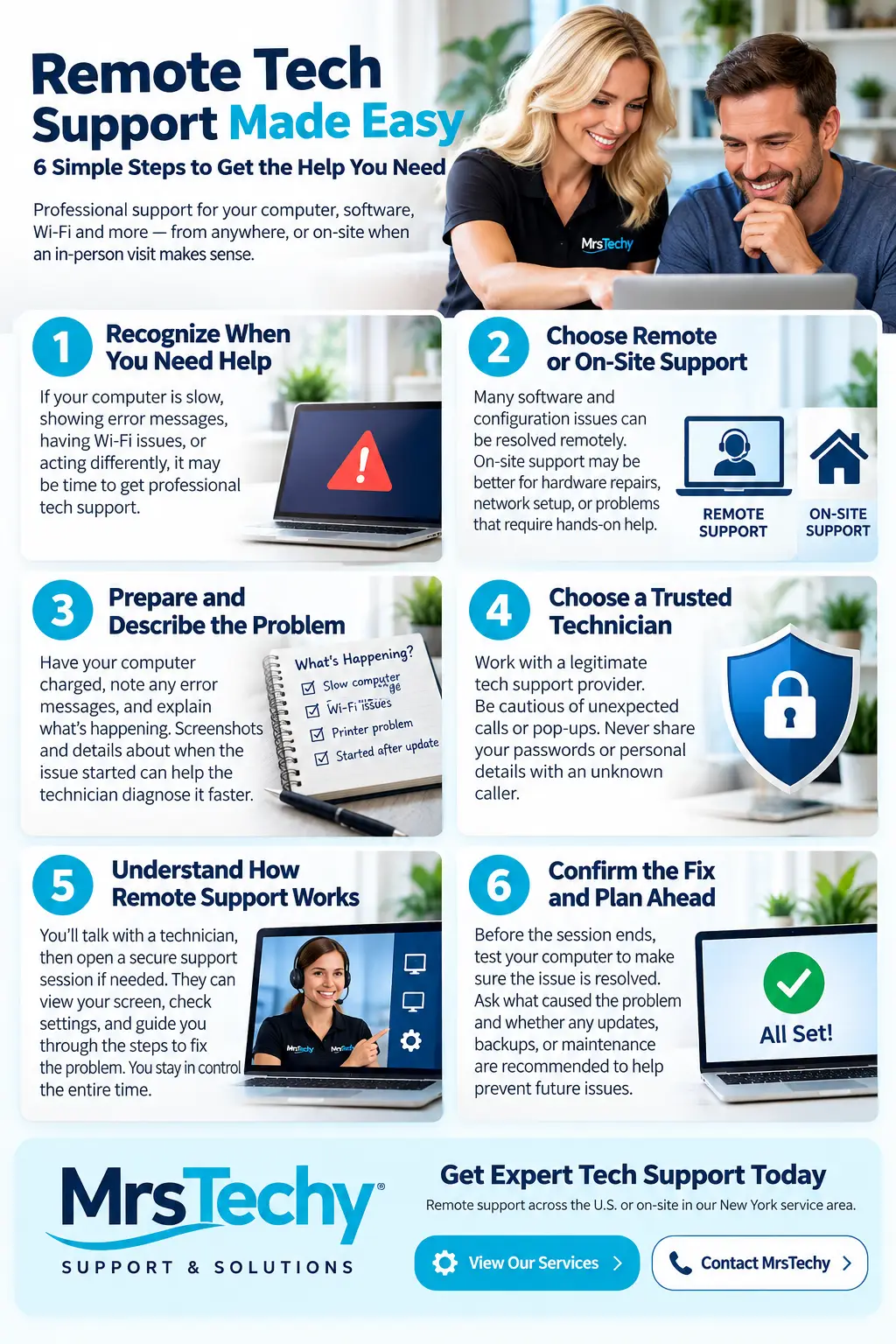
Here are six easy steps to getting the help you need.
Recognize When You Need Remote Tech Support
Not every computer problem requires professional assistance, but you don’t need to spend hours struggling with an issue you cannot resolve.
Common reasons to seek help include slow performance, software installation problems, recurring error messages, suspicious pop-ups, printer difficulties, and unreliable internet connections.
Start by identifying what’s happening. Does your computer freeze when you open a particular program? Is your Wi-Fi disconnecting repeatedly? Did the problem begin after a recent update?
You don’t need to know the technical explanation. Simply describing what you see and when it happens gives a technician a useful starting point.
If you’ve already tried restarting your computer or checking basic connections without success, remote computer support may help you identify the underlying issue.
Choose Between Remote and On-Site Computer Support
One of the first decisions is determining what type of assistance your problem requires.
Remote support allows a technician to troubleshoot many software, configuration, and everyday computer problems without traveling to your location. Depending on the issue, assistance may be provided by phone or through a secure, authorized remote-support session.
Online tech support can be particularly convenient for software installation, application errors, operating-system settings, and certain performance problems.
However, not every issue can be resolved remotely.
A computer that won’t turn on, a damaged laptop screen, faulty physical equipment, or certain network installation problems may require hands-on assistance.
On-site computer support may also be appropriate when several devices need attention or when the problem involves physical networking equipment.
Explain your symptoms and ask which support option makes the most sense before scheduling an appointment.
Prepare Your Computer and Describe the Problem
A little preparation can make your support session more productive.
If your computer is working, make sure it’s charged or connected to power. Have your internet connection available if remote assistance is planned.
Write down any error messages you’ve encountered. Screenshots can be especially helpful when a problem appears intermittently.
Think about when the issue started and whether anything changed beforehand, such as a software update, new application, or recently installed device.
If possible, back up important files before extensive troubleshooting or repairs.
You should also mention any work you’ve already attempted. This helps the technician avoid repeating unsuccessful steps.
Don’t worry about using technical terminology. Explaining that your computer becomes slow every time you open a particular application is more useful than guessing at the cause.
Choose a Trustworthy Technician and Protect Your Privacy
Inviting someone to access your computer requires trust, whether the assistance is provided remotely or in person.
Contact a legitimate support provider directly rather than calling telephone numbers displayed in unexpected pop-up warnings.
Be especially cautious of unsolicited calls or messages claiming that your computer has a serious security problem.
Before starting a support session, ask what assistance will be provided, whether remote access is necessary, and what charges may apply.
Only authorize remote access when you’ve deliberately requested assistance and verified who you’re working with.
Never provide your passwords, banking credentials, or security verification codes to an unexpected caller.
The Federal Trade Commission provides useful guidance on recognizing and avoiding tech support scams.
A trustworthy support experience should include clear explanations, appropriate authorization, and respect for your personal information.
Understand How Remote Tech Support Works
If you’ve never used remote assistance before, you may wonder what actually happens during a session.
Depending on the problem, a technician may first discuss your symptoms over the phone and guide you through some basic troubleshooting.
If additional assistance is needed, you may be asked to open an approved remote-support application or follow instructions for starting a secure connection.
You should understand what access you’re authorizing before proceeding.
During an authorized session, the technician may be able to view your screen, check software settings, investigate error messages, or guide you through the steps needed to resolve the problem.
Ask questions whenever something isn’t clear. Good support should feel like a conversation, not a technical lecture.
If the problem cannot be resolved remotely, the technician can explain whether further diagnostics, hardware repairs, or an on-site appointment would be appropriate.
When the session ends, confirm that the remote connection has been disconnected and ask whether any temporary support software should be removed.
Confirm the Fix and Know What Happens Next
Before ending your support session, take a moment to confirm that the original problem has actually been resolved.
If your computer was running slowly, open the applications that previously caused trouble. If your printer wasn’t working, try printing a test page. If you had a software problem, check that the application now behaves as expected.
Ask the technician to explain what caused the problem, what was changed, and whether there’s anything you should do to prevent it from happening again.
You may also want to ask whether your computer needs additional updates, security improvements, backups, or routine maintenance.
If the issue remains unresolved, discuss the next diagnostic steps and whether an on-site appointment or hardware repair is necessary.
For recurring problems, periodic preventive maintenance may help reduce interruptions and keep your devices operating reliably.
The goal isn’t simply to make an error message disappear. It’s to understand the problem, restore normal operation, and feel confident using your technology again.
Getting Tech Help Should Feel Simple
You don’t need to be a technology expert to get professional computer assistance. You deserve understandable explanations, practical recommendations, and support that fits your particular situation.
MrsTechy provides remote tech support for customers across the United States, along with on-site assistance in its New York service area. Whether you’re dealing with software problems, device setup, slow computers, networking issues, or everyday technology frustrations, we’re here to help.
Explore our technology support services or contact MrsTechy to discuss your problem and find an appropriate solution.