

Good home tech maintenance keeps your computer, phone, and Wi-Fi running smoothly. With a few simple habits, you can prevent common problems, protect your data, and extend the life of your devices. Here’s how to keep your home technology reliable without spending hours troubleshooting.
Home Tech Maintenance Starts With Software Updates
Keeping your devices updated is one of the simplest ways to improve security and prevent technical problems. Operating system, browser, application, and antivirus updates often fix security vulnerabilities, resolve bugs, and improve compatibility.
Enable automatic updates on your computer and phone whenever appropriate. Check your browser, security software, and smart-home devices regularly, since not every update installs automatically. Restart devices when an update requires it, and avoid repeatedly postponing important security patches.
For additional online safety guidance, the Cybersecurity and Infrastructure Security Agency (CISA) provides practical recommendations for keeping software updated.
Protect Your Home Wi-Fi and Online Accounts
Your home network connects laptops, phones, printers, smart TVs, and other devices. A secure, reliable connection is an important part of home tech maintenance.
Use a strong, unique Wi-Fi password, enable WPA2-AES or WPA3 security where supported, and change your router’s default administrator password. Keep your router firmware updated, and consider a separate guest network for visitors.
Protect important online accounts with unique passwords and multifactor authentication. A reputable password manager can make this easier.
If you experience persistent dead zones, slow connections, or devices that repeatedly disconnect, your router placement or network configuration may need attention.
Back Up Your Photos, Documents, and Important Files
A computer failure, accidental deletion, stolen device, or malware infection can put irreplaceable files at risk. Regular backups provide a way to recover important information when something goes wrong.
Use a trusted cloud backup service, an external drive, or both. For particularly important files, maintain multiple copies, including one stored separately from your main computer.
Check periodically that backups are completing successfully. Try restoring a test file so you know the recovery process works before an emergency occurs.
Remember that synchronizing files between devices isn’t always the same as maintaining an independent backup. Accidental deletions or unwanted changes can sometimes synchronize too.
Recognize Computer Problems Before They Get Worse
A suddenly slow laptop, excessive fan noise, frequent crashes, unexplained pop-ups, or a computer that runs unusually hot can indicate an underlying problem.
Start with simple troubleshooting. Restart the device, check available storage, review recently installed applications, and install pending updates. Remove unnecessary startup programs and run a scan using reputable security software when appropriate.
Avoid clicking alarming pop-up messages claiming that your computer is infected or instructing you to call an unfamiliar support number. Close suspicious pages without interacting with them.
If your computer repeatedly overheats, shuts down unexpectedly, or makes unusual mechanical noises, stop unnecessary use and investigate promptly. Back up accessible important files when safe to do so.
A small problem is often easier to address before it causes prolonged downtime or data loss.
Follow a Simple Home Tech Maintenance Routine
Consistent maintenance is more effective than waiting until something breaks. Use this straightforward routine to keep your devices in good condition.
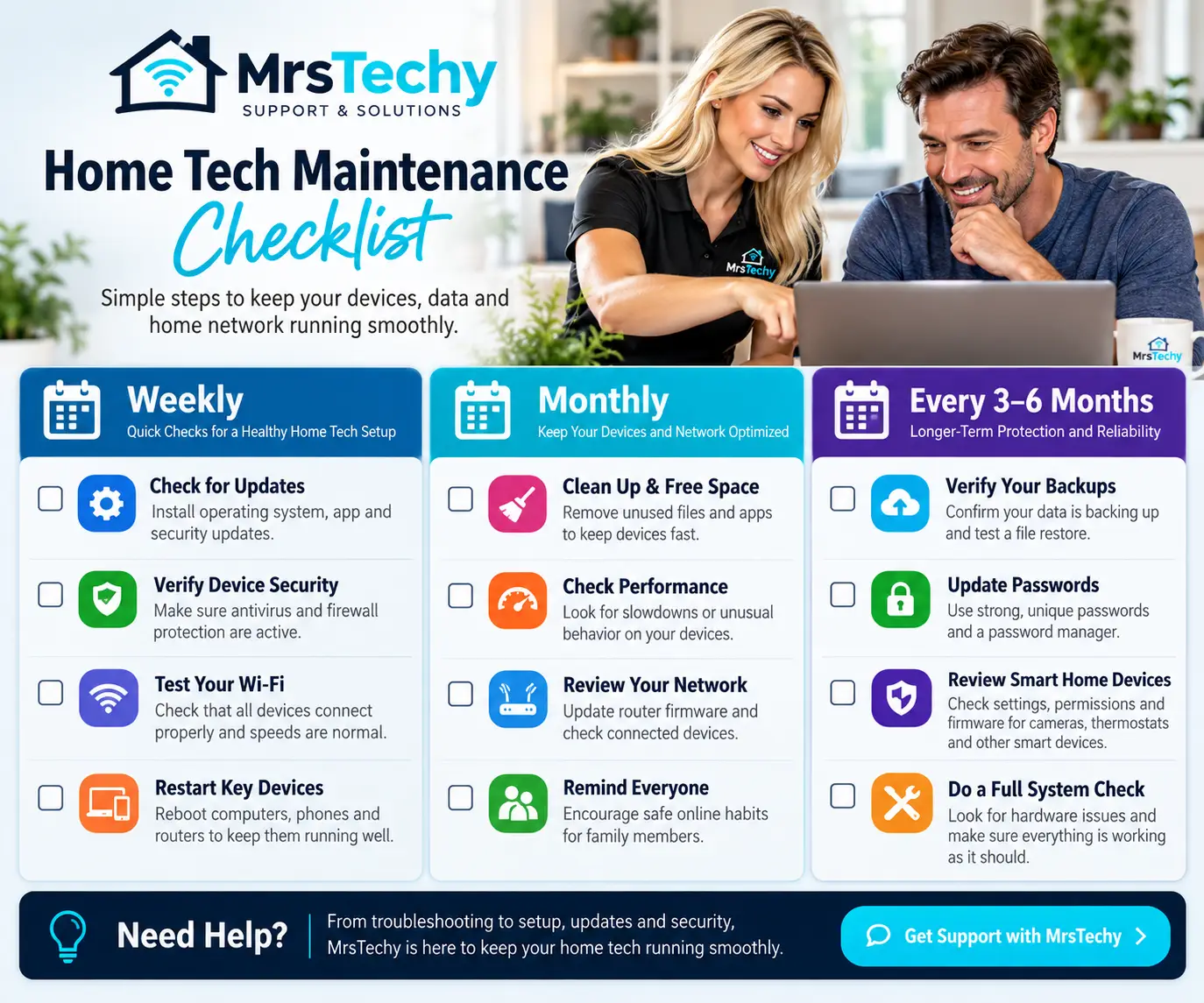
Every week, check important update notifications, restart devices that need it, and confirm that your automatic backups are working.
Every month, review available storage, remove applications you no longer use, and check your computers and phones for unusual behavior. Inspect your router’s update status and make sure your important accounts remain protected.
Every few months, review your backup recovery options, clean dust from accessible exterior vents, and assess whether aging devices are still meeting your needs.
Regular home tech maintenance helps reduce avoidable interruptions and makes it easier to recognize problems when they arise.
Know When to Ask for Professional Tech Support
Not every technology problem requires professional assistance. However, recurring crashes, suspected malware, persistent Wi-Fi failures, unsuccessful backups, and hardware problems may need a more thorough diagnosis.
MrsTechy provides computer troubleshooting, PC and Mac repair, networking and Wi-Fi assistance, malware removal, and data backup solutions. Our team can help identify the underlying problem and recommend an appropriate next step.
Need help keeping your home technology running smoothly? Explore our technology support services or contact MrsTechy for personalized assistance.