

Every computer eventually slows down, and every device owner eventually faces the same question: is it worth fixing, or is it time to let it go? Deciding whether to repair or replace your laptop depends on its condition, repair costs, performance, security, and what you actually need it to do.
A computer that’s four or five years old isn’t automatically obsolete. Sometimes a relatively inexpensive repair or upgrade can extend its useful life. Other times, replacement is the more practical long-term choice.
Here are six smart checks to help you make that decision.
Repair or Replace Your Laptop? Identify the Real Problem
Before deciding to replace an aging device, identify what’s actually wrong with it.
A slow computer might have too many background applications, insufficient storage, outdated software, or a failing drive. A laptop that won’t hold a charge might need only a replacement battery.
Start by noting the symptoms. Does the computer take too long to start? Does it freeze when particular applications are open? Is it overheating, displaying error messages, or unexpectedly shutting down?
Simple troubleshooting can sometimes reveal an inexpensive solution. However, signs of a swollen battery, serious overheating, or electrical damage warrant professional attention rather than continued use.
An accurate diagnosis helps prevent unnecessary purchases and makes it easier to compare your options.
Compare Laptop Repair vs Replacement Costs
Cost is one of the most important considerations when deciding whether to fix an aging computer.
Obtain a realistic repair estimate that includes replacement parts, labor, and any additional work the device might need.
Compare that estimate with the price of a suitable replacement—not necessarily the newest or most expensive computer available.
A battery replacement, additional memory, or software cleanup may cost considerably less than purchasing another device. A major motherboard failure, extensive liquid damage, or multiple failing components can change the calculation.
Also consider the computer’s remaining useful life. An inexpensive repair may be worthwhile if the device meets your needs for several more years. Repeated repairs on an increasingly unreliable computer can eventually cost more than replacement.
The goal is to understand the total cost of each option before making a decision.
Check Your Device’s Age and Security Support
Age matters, but it isn’t the only factor in knowing when to replace a laptop.
A well-maintained computer may remain useful for years, particularly when its hardware meets your everyday requirements. However, its operating system and essential software must still receive appropriate security support.
Check whether your device supports a currently maintained operating system. Review the manufacturer’s information about software updates, available replacement parts, and hardware compatibility.
For Windows computers, Microsoft’s product lifecycle documentation can help you check the support status of its software.
A computer that can no longer receive necessary security updates may expose you to risks, even if its hardware still works.
Consider whether your current device can run a supported operating system before investing in an expensive repair or upgrade.
Decide Whether an Upgrade Could Improve Performance
Before replacing a computer that feels slow, investigate whether a targeted upgrade could restore acceptable performance.
Depending on the model, adding memory, replacing an older hard drive with a solid-state drive, or installing a new battery may improve everyday usability.
However, not every laptop supports these upgrades. Some newer devices have memory or storage components that cannot easily be replaced.
Check the manufacturer’s specifications and the cost of compatible parts before purchasing anything.
Also consider the limitations of the processor and other components. Adding memory won’t necessarily solve poor performance if the computer cannot handle the applications you need.
When deciding whether to upgrade or replace laptop hardware, compare the likely performance improvement with the overall investment.
A practical upgrade should solve a real problem, not simply postpone an unavoidable replacement.
Match the Computer to Your Actual Needs
What you use your computer for can significantly influence your decision.
Someone who primarily checks email, browses websites, manages documents, and attends occasional video meetings may have different requirements from someone who edits high-resolution videos, runs demanding business applications, or works with complex design software.
Consider how well your current computer handles your daily tasks.
If it still performs reliably and supports the applications you need, an expensive replacement might offer little practical benefit.
If your work regularly involves programs that exceed the computer’s capabilities, upgrading selected components may not be enough.
Ask yourself: “Is my laptop worth repairing if it can no longer handle the work I need to accomplish?”
Think about your requirements over the next few years, not just what works today. This helps you avoid spending money on repairs or upgrades that won’t meet your longer-term needs.
Protect Your Files and Plan Your Next Steps
Before making major changes to an aging computer, protect your important files.
Back up documents, photographs, business records, and any other information you cannot afford to lose. When possible, verify that you can actually restore files from your backup.
If your computer shows signs of serious storage failure, avoid unnecessary troubleshooting that could worsen the problem. Professional data recovery may be appropriate when important files are at risk.
If you decide to replace the device, plan how you’ll transfer your files, applications, and account settings to the new computer.
Before recycling, donating, or selling the old device, securely remove your personal information using an appropriate method. The EPA also provides guidance on responsible electronics recycling.
If you choose repair instead, ask about replacement-part warranties, the expected repair timeline, and whether additional maintenance would be beneficial.
Planning ahead helps reduce downtime, protect your information, and make the transition easier.
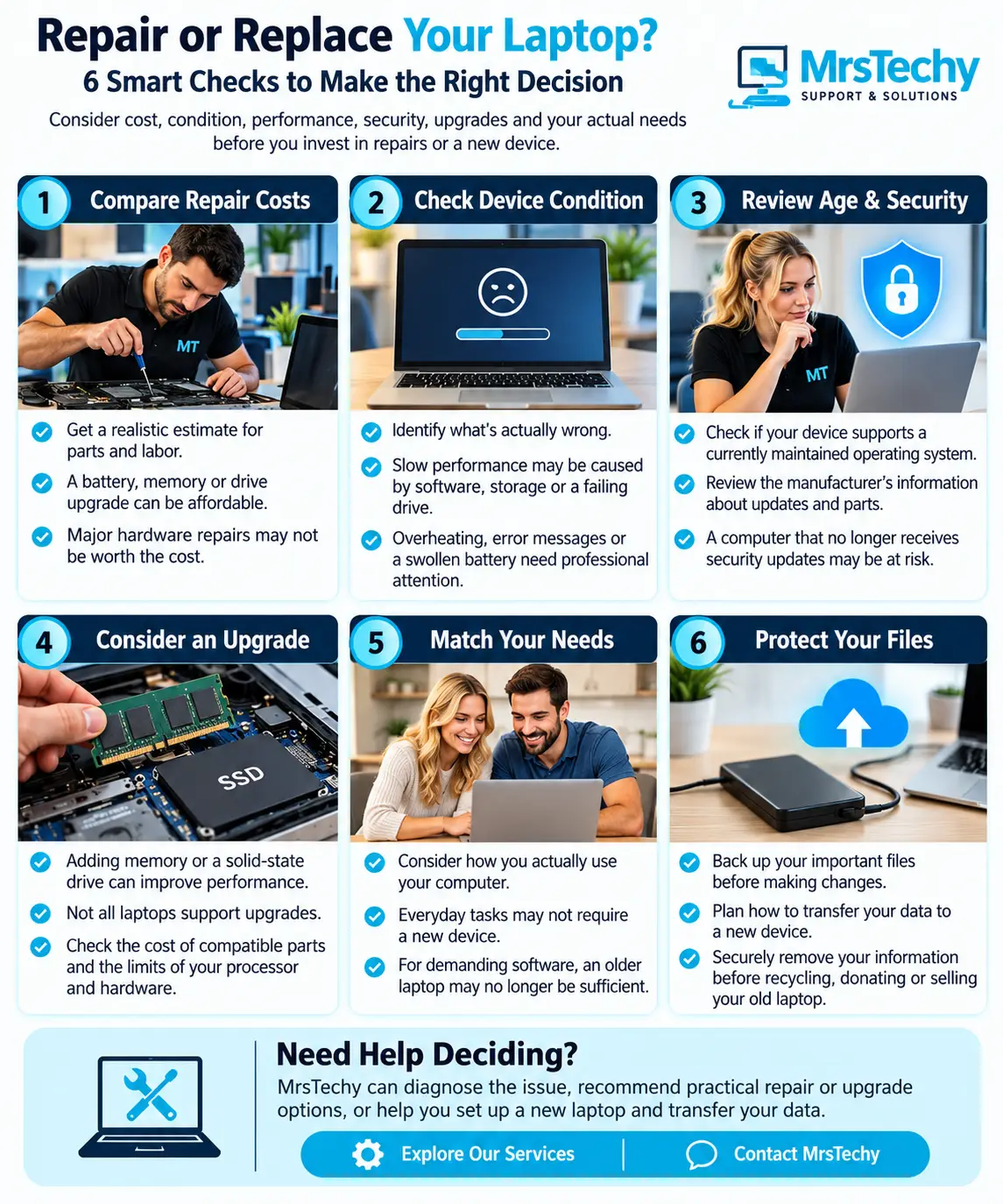
Make the Right Decision for Your Device
Repairing, upgrading, or replacing an aging computer isn’t always a straightforward choice. The right decision depends on the specific problem, total cost, software support, performance requirements, and how much useful life remains.
MrsTechy helps residential and small-business customers diagnose computer problems, assess practical repair and upgrade options, configure replacement devices, and protect important data.
Explore our computer repair and technology support services or contact MrsTechy to discuss your device and determine a practical way forward.